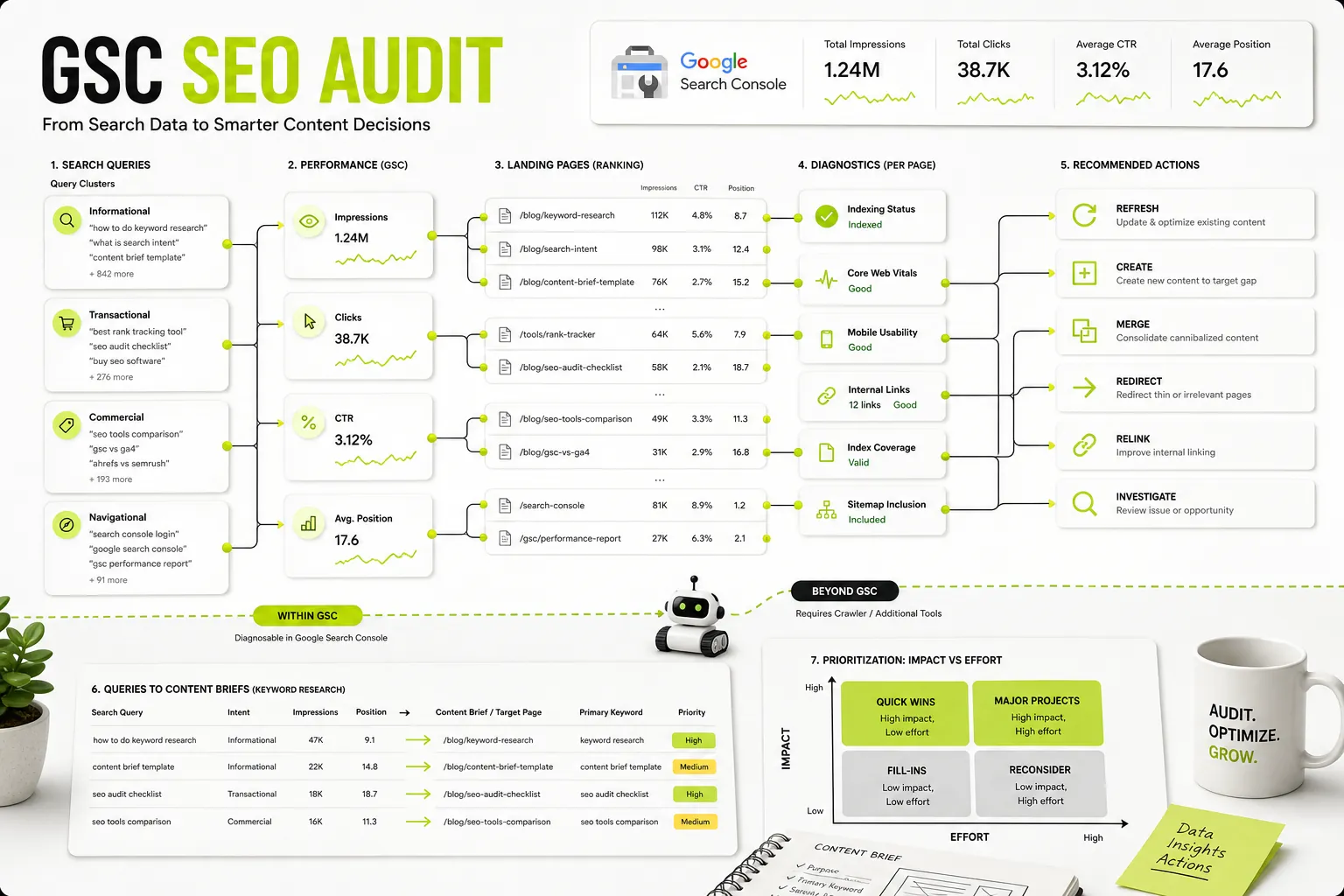
Executing a thorough google search console seo audit is the most direct way to understand how Google views, crawls, indexes, and ranks your website. Unlike third-party SEO platforms that rely on estimated traffic and projected search volume, Google Search Console (GSC) provides first-party diagnostic data drawn directly from real Google Search users and Googlebot’s crawl history.
A structured Search Console audit helps you identify why traffic is dropping, find low-hanging CTR improvements, isolate technical crawl blocks, and discover thousands of hidden keyword opportunities. By combining performance analysis, query clustering, technical indexing health, and link distribution, you can transform raw GSC reporting into a prioritized content and engineering roadmap.
What a Google Search Console SEO Audit Covers (and Its Scope Limits)
Google Search Console is an essential diagnostic toolkit for webmasters and marketers. However, understanding what GSC measures—and what it skips—is critical before taking corrective action on your site.
Technical and Search Performance Insights in Current GSC
Modern Google Search Console aggregates performance and technical reporting across four primary operational areas:
- Search Performance: Measures impressions, organic clicks, average click-through rate (CTR), and average position across keywords, URLs, countries, devices, and search appearances (such as rich snippets or Web Light pages).
- Indexing and Crawlability: Highlights indexed versus non-indexed URLs, canonical tags, soft 404 errors, server timeouts (5xx status codes), XML sitemap processing, and robots.txt fetch permissions.
- Page Experience and Enhancements: Tracks real-user Core Web Vitals (LCP, INP, CLS) from the Chrome User Experience Report (CrUX), HTTPS status, and schema markup validity across breadcrumbs, products, articles, and FAQ elements.
- Link Distribution: Summarizes top internally linked pages, top externally linked pages, and top linking root domains.
      +-------------------------------------------------------------------+
|               Google Search Console Audit Scope                  |
+---------------------------------+---------------------------------+
| Included (First-Party Data)    | Excluded (Requires Site Crawler)|
+---------------------------------+---------------------------------+
| Real impression/click metrics   | Full visual architecture maps   |
| Googlebot-reported index states | Off-site competitor keywords    |
| Field-data Core Web Vitals      | Broken outgoing internal links  |
| Direct sitemap & robots status  | Missing on-page H1/meta tags    |
| Google-detected schema errors   | Non-indexed orphan discovery    |
+---------------------------------+---------------------------------+
GSC Audit Boundaries: What Requires a Site Crawler
While GSC provides unmatched authority on search visibility, it is not a complete site auditing solution on its own. GSC only displays data for URLs that Googlebot has already discovered, crawled, or evaluated for indexing.
To execute a comprehensive site health check, you must know where GSC stops and where a dedicated site crawler or specialized tool is required:
- Unlinked or Undiscovered Pages: If a page is absent from your XML sitemap and has zero internal links, Googlebot may never find it. GSC cannot report on URLs Google doesn’t know exist; a site crawler will find them by scanning your web server directory or CMS repository.
- On-Page Tag Audits: GSC does not provide site-wide inventories of missing
<H1>tags, duplicate meta descriptions, missing image alt text, or low word counts across your entire inventory. - Outgoing Broken Links: GSC tracks incoming external links and internal links pointing to a page, but it does not scan individual pages to alert you when an outgoing hyperlinked URL returns a 404 error.
- Competitor Intelligence: GSC only reflects your owned properties. It offers zero data on competitor search volume, keyword gaps where your site has zero impressions, or external backlink profiles of competing domains.
Setting Up GSC Properties Correctly for Complete Data
An accurate audit requires complete, unfragmented data collection. Incomplete property setup can mask critical indexing errors and split performance metrics across multiple reports.
Domain Properties vs. URL-Prefix Properties
When configuring Google Search Console, you can verify ownership via two distinct property types:
| Property Type | Scope Covered | Verification Method | Best Used For |
|---|---|---|---|
| Domain Property | example.com, www.example.com, blog.example.com, http://, https:// | DNS TXT Record | Domain-wide performance, overarching indexing health, complete data reporting |
| URL-Prefix Property | https://example.com/blog/ or https://www.example.com/ | HTML file, Meta tag, GTM, Google Analytics | Subdirectory isolation, specific country targeting, precise sitemap testing |
For a full site audit, always start at the Domain Property level. If you only audit a URL-prefix property (e.g., https://example.com), you risk missing impressions and indexing errors generated on http://, http://www., or alternate subdomains like app.example.com.
Verifying Ownership and Checking Data Continuity
- Verify DNS Ownership: Access your domain registrar (Cloudflare, Namecheap, GoDaddy) and add the unique TXT record supplied by GSC.
- Maintain Secondary URL-Prefix Properties: Keep URL-prefix properties active for specific high-priority subfolders (e.g.,
/blog/or/shop/). This enables localized sitemap testing and targeted URL Inspection runs. - Check Data Continuity: Ensure there are no unexplained gaps in performance data. GSC retains 16 months of historical performance data. If you notice vertical drops to zero across all metrics, verify that site migration redirects, SSL certificate renewals, or security header changes haven’t blocked Googlebot or broken DNS verification.
Auditing Performance Data: Clicks, Impressions, CTR, and Position
The Performance tab is where you diagnose organic traffic shifts and identify quick content wins. A structured performance audit shifts the focus from vanity metrics to clear optimization decisions.
      Performance Data Audit
├── Baseline Configuration (12-Mo / 3-Mo / 28-Day, Device & Country Filters)
├── CTR Quick Wins (High Impressions + Low CTR -> Title / Snippet / Intent Alignment)
└── Striking Distance (Positions 8–25 -> Depth, Subheadings, Internal Link Anchors)
Setting Up Baseline Metrics and Date Comparisons
Before isolating individual pages, establish your macro organic traffic baseline:
- Set Timeframes: Open the Performance > Search results tab. Set the date range to Compare > Compare last 3 months to previous period or Compare last 3 months year over year (YoY) to filter out seasonal query spikes.
- Apply Key Filters: Isolate traffic noise by filtering by country (e.g., United States) and device type (Mobile vs. Desktop). Mobile CTR and rankings often diverge significantly from desktop due to visual SERP features and local search packs.
- Analyze Aggregate Trends: Turn on all four top-level metric toggles: Total clicks, Total impressions, Average CTR, and Average position.
Look for diagnostic patterns:
- Impressions stable, Clicks dropping: Signals CTR degradation due to new SERP features (Ads, AI Overviews), title tag truncation, or lost rich snippets.
- Impressions dropping, Clicks dropping: Signals true rank loss, technical indexing de-indexation, or declining interest in the core topic.
- Impressions rising, Clicks flat: Your content is gaining visibility for broader, higher-volume non-branded terms, but isn’t ranking high enough yet to secure the click.
Diagnosing High-Impression, Low-CTR Pages for CTR Quick Wins
High-impression, low-CTR pages represent your fastest organic growth targets because Google is already displaying your content to searchers.
Quick Win Detection Workflow
- Navigate to Performance > Search results > Pages.
- Set the date filter to the Last 28 days.
- Export the table or filter within GSC for pages where Impressions > 5,000 and CTR < 1.5% (adjust metrics based on your site’s average scale).
- Click on a specific low-CTR page URL, then click over to the Queries tab to see what terms drive those impressions.
Root Causes and Remediations
- Snippet Title Mismatch: The current page title tag fails to include the precise intent terms users search for. Fix: Rewrite title tags to mirror primary user intent while adding primary secondary modifiers (e.g., year, actionable format, template).
- AI Overviews / Rich Snippet Displacement: Featured snippets or local maps sit above your position 3 ranking, taking clicks. Fix: Restructure answers into clean tables, concise ordered lists, or direct definitions matching schema requirements.
- Intent Mismatch: The query intent is transactional (“buy running shoes”), but your page is an informational article (“history of running shoes”). Fix: Either adjust the content structure or create a dedicated commercial page.
Finding Striking-Distance Keywords in Positions 8–25
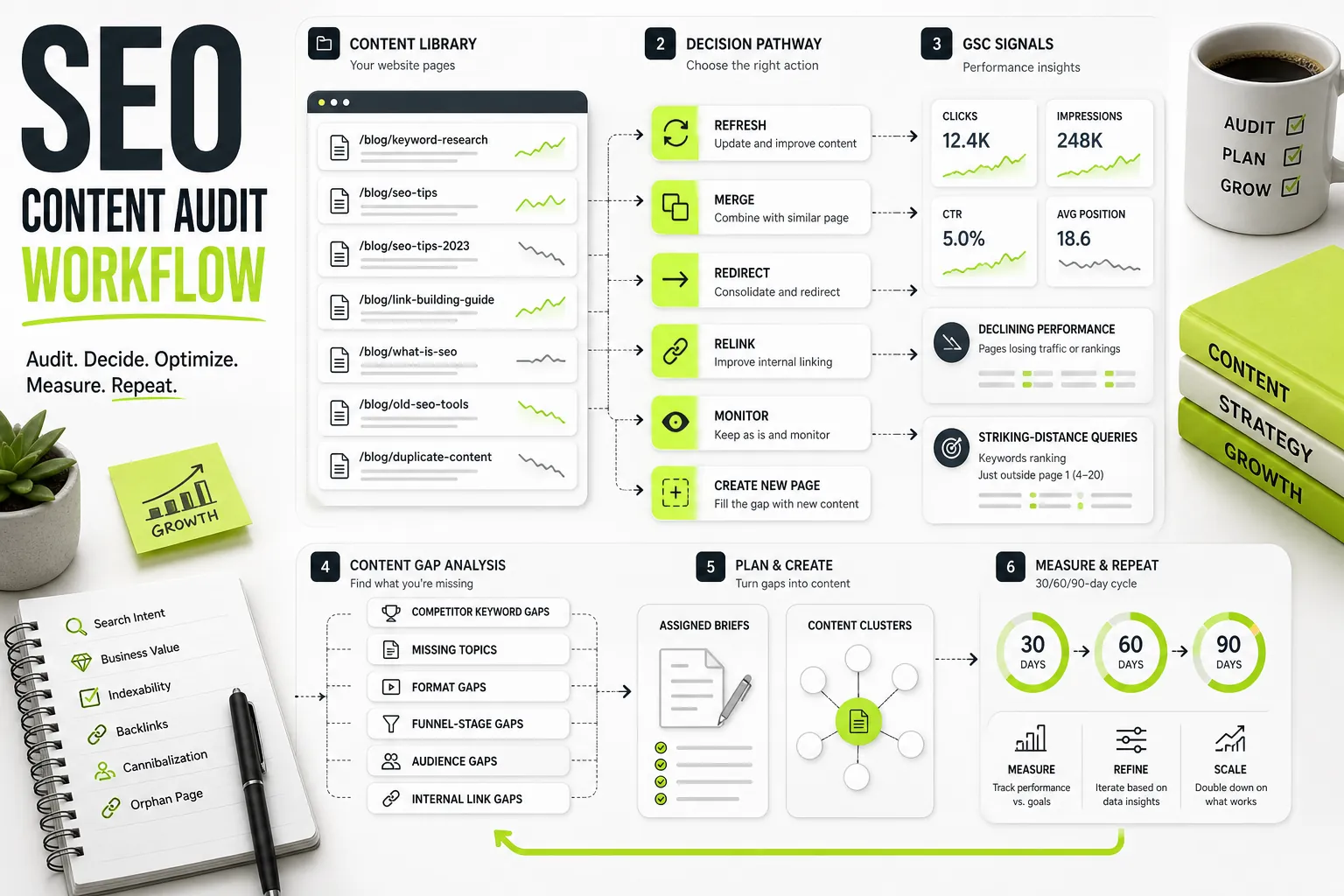
Striking-distance keywords are queries where your site ranks on lower page 1 or pages 2 and 3 (positions 8 through 25). Small on-page adjustments can push these terms into high-click top-3 positions.
Step-by-Step Striking Distance Discovery
- Go to Performance > Search results > Queries.
- Add a Custom Filter: Position > Greater than 7.9 and Position > Less than 25.1.
- Sort the table by Impressions descending.
- Select a high-impression striking-distance query, then click the Pages tab to verify which exact URL ranks for that query.
Optimization Actions for Striking-Distance Queries
- Content Depth Additions: Expand the ranking URL to answer missing sub-topics or long-tail questions tied to that query.
- Heading Optimization: Integrate the exact striking-distance query or key modifiers directly into an
<H2>or<H3>subheading. - Anchor Text Realignment: Add internal links from high-authority contextually relevant pages using the striking-distance phrase in the anchor text.
How to Use Google Search Console for Keyword Research
Using google search console for keyword research yields a significant strategic advantage over traditional third-party research tools: every keyword in GSC represents actual impressions earned by your domain. Instead of relying on broad database estimates, you are mining your site’s true search footprint.
Exporting Query Data and Uncovering Long-Tail and Question Variants
To uncover long-tail and question-based keywords in GSC:
- Apply Regex Filters: In the Performance report, add a filter under Queries > Custom (regex) using the following string to extract question-based search queries:
^(who|what|where|when|why|how|can|is|are|does|should)\b - Export Your Query Inventory: GSC natively caps table downloads to 1,000 rows. To extract comprehensive data across thousands of low-volume long-tail terms:
- Connect your GSC property to the free Google Sheets extension Search Analytics for Sheets.
- Alternatively, configure BigQuery Export within GSC settings for enterprise-scale automated query exports.
- Analyze Long-Tail Modifiers: Look for multi-word queries (4+ words) with high impressions and low position numbers. These indicate emerging search behaviors where specialized sections or dedicated content assets can dominate search results.
Exported GSC queries can be organized before assigning page-level actions; utilizing a dedicated keyword clustering tool helps automate grouping raw query exports into structured topic hubs.
      Raw GSC Query Export (CSV / BigQuery)
           │
           ▼
Categorize Query Intent & Match URL
           │
 ┌─────────┴────────────────────────┐
 ▼                                  ▼
Position 8–25 on Relevant Page?    Unranked / Irrelevant URL Position >50?
 │                                  │
 ▼                                  ▼
Existing Page Refresh              Net-New Content Gap Creation
(Add H2/H3s, Update Copy, Relink) (Generate Detailed Content Brief)
Distinguishing Existing Page Updates from Net-New Content Gaps
One key constraint when using GSC for keyword discovery is that GSC only reports queries for which your site already displays search impressions. It cannot highlight topic gaps where your domain has zero search presence.
Use this decision logic to process discovered queries:
                        Discovered GSC Query Cluster
                               │
                Is there an existing page ranking
                   for these queries (Pos 1-30)?
                               │
               ┌───────────────┴───────────────┐
              YES                              NO
               │                               │
    Is the search intent             Create a Net-New Page
   identical to target URL?          (Build a dedicated brief)
               │
       ┌───────┴───────┐
      YES              NO
       │               │
  Update Existing    Split Intent: Create New Page
   Page Content     & Add Cross-Link
- Update Existing Page: The query ranks between positions 8 and 30, and the intent matches an existing page’s primary topic. Add new sections, update outdated statistics, and refine headings.
- Create Net-New Page: The query cluster ranks > 50 across irrelevant pages (e.g., a blog post ranking for a distinct product feature query), or the intent differs completely from the currently ranking page.
Query Grouping, Search Intent Alignment, and Cannibalization Checks
Grouping queries ensures that you do not create redundant pages that compete against each other in Google’s index. Utilizing semantic keyword grouping allows you to aggregate thousands of GSC queries by underlying user intent and SERP behavior, rather than relying on strict keyword matches.
Detecting Keyword Cannibalization
Keyword cannibalization occurs when multiple pages on your site compete for the same query, splitting clicks, links, and authority.
- Filter the Performance report by a specific primary query.
- Click the Pages tab to see all URLs earning impressions for that query.
- Healthy Coverage: One page receives 90%+ of clicks and impressions; secondary pages have minimal impression footprints.
- Unhealthy Cannibalization: Two or more pages split impressions roughly 50/50, and their average positions fluctuate erratically.
      +-----------------------------------------------------------------------------------------+
|                              Cannibalization Decision Matrix                            |
+------------------------+------------------------------------+---------------------------+
| Scenario               | Diagnosis                          | Action Step               |
+------------------------+------------------------------------+---------------------------+
| Page A & B compete for | Same intent, split authority,      | 301 Redirect secondary    |
| exact same query       | fluctuating positions              | page into top primary URL |
+------------------------+------------------------------------+---------------------------+
| Informational guide &  | Mixed intent: informational guide  | Add cross-links; target   |
| Commercial product page| ranks for transactional query      | distinct keywords on each |
+------------------------+------------------------------------+---------------------------+
| Legacy obsolete post & | Duplicate/outdated historical      | Canonicalize or merge     |
| modern resource page   | topic coverage                     | post into modern resource |
+------------------------+------------------------------------+---------------------------+
Auditing Page Indexing, Crawlability, and Technical Issues
If Google cannot crawl or index your pages, on-page optimization and link building are ineffective. The Page Indexing report provides direct visibility into Googlebot’s database status for your site.
Troubleshooting Page Indexing Errors, Soft 404s, and 5xx Response Codes
Navigate to Indexing > Pages in GSC. Check the primary chart to review total Indexed versus Not indexed URLs, then audit specific failure reasons under the table below:
                    Page Indexing Issues Workflow
                            │
   ┌────────────────────────┼────────────────────────┐
   ▼                        ▼                        ▼
Soft 404                 Server Error (5xx)       Discovered / Crawled
(Content blank / missing) (Host timeouts / crashes) Not Indexed
   │                        │                        │
   ▼                        ▼                        ▼
Return true 404 status  Audit server load /      Improve content depth,
or add main copy        fix backend scripts      internal links, sitemaps
- Soft 404: Googlebot encountered a page that returns an HTTP
200 OKheader, but the page content resembles a “not found” page (e.g., empty search results page, thin content, missing products). Fix: Update the server configuration to send a true404or410HTTP response code, or add substantial original content to the page. - Server Error (5xx): Googlebot attempted to fetch the URL, but your web server returned a gateway timeout (504), service unavailable (503), or internal server error (500). Fix: Work with your host/dev team to review server logs during the exact timestamp reported in GSC. Look for database connection limits or API timeouts.
- Discovered - Currently Not Indexed: Google discovered the URL (often via sitemaps or internal links), but has not yet crawled it to manage crawl budget. Fix: Improve internal linking from high-authority pages and remove low-quality URLs from sitemaps.
- Crawled - Currently Not Indexed: Googlebot crawled the page, evaluated its content, but determined it did not meet the quality or uniqueness threshold required for indexation. Fix: Rewrite the content to increase uniqueness, add original insights, and consolidate thin URLs.
Auditing XML Sitemaps and Robots.txt Accessibility
XML Sitemaps Audit
- Go to Indexing > Sitemaps.
- Review submitted XML sitemap indexes (e.g.,
sitemap.xml). - Ensure status displays as Success in green.
- Discrepancy Check: Compare the number of URLs submitted in the sitemap against the number of indexed URLs reported under the Page Indexing report. If your sitemap submits 10,000 URLs but only 2,000 are indexed, your sitemap contains low-value, redirected, or canonicalized noise. Keep XML sitemaps strictly populated with 200 OK indexable target URLs.
Robots.txt Verification
- Navigate to Settings > Robots.txt.
- Verify that Googlebot successfully fetches your primary
robots.txtfile without HTTP errors. - Review blocked path directives to confirm you aren’t unintentionally disallowing key resources, such as
/blog/, CSS files, or JavaScript assets needed for client-side page rendering.
Using the URL Inspection Tool for Live Testing and Requesting Indexing
The URL Inspection Tool is GSC’s primary micro-diagnostic feature for analyzing single URLs.
      URL Inspection Diagnostics
├── 1. Check Index Status (Discovered Canonical vs Google-Selected Canonical)
├── 2. Run Test Live URL (Fetch live HTTP response, JS execution, mobile accessibility)
└── 3. Request Indexing (Submit repaired or refreshed URLs to Googlebot queue)
- Paste any page URL into the top search bar in GSC.
- Review Google Index Data: Check Presence on Google, User-declared canonical, and Google-selected canonical. If Google selected a different canonical than your declared tag, Google views your content as duplicate or near-identical to another page.
- Run “Test Live URL”: Click Test Live URL in the top right to execute a real-time fetch. Check the rendered screenshot and page code to ensure dynamic JavaScript content loads properly for Googlebot.
- Request Indexing: After fixing technical issues, publishing a major content update, or canonicalizing a URL, click Request Indexing to place the URL into Googlebot’s priority processing queue.
Evaluating Page Experience, Core Web Vitals, and Enhancements
Page experience metrics help ensure that technical usability issues do not drag down your organic performance.
Analyzing Core Web Vitals and HTTPS Security Reports
Navigate to Experience > Core Web Vitals. GSC breaks performance into Mobile and Desktop charts based on real-world field data collected over 28-day aggregation periods.
- Largest Contentful Paint (LCP): Measures loading performance. Target: <= 2.5 seconds. Common fixes: Compress hero images, use WebP/AVIF formats, optimize server response times (TTFB), and implement CDN caching.
- Interaction to Next Paint (INP): Measures page responsiveness to user inputs. Target: <= 200 milliseconds. Common fixes: Defer heavy third-party JavaScript execution, break up long tasks, and remove render-blocking scripts.
- Cumulative Layout Shift (CLS): Measures visual stability. Target: <= 0.1. Common fixes: Explicitly define
widthandheightattributes on images/iframes, avoid dynamic ad insertions above content, and preload web fonts.
HTTPS Security Audit
Review Experience > HTTPS. Ensure that 100% of URLs evaluated are served securely over HTTPS without mixed-content warnings (e.g., serving HTTP images on an HTTPS page).
Validating Structured Data and Rich Result Enhancements
Under the Enhancements navigation menu, GSC automatically surfaces reports for any structured data detected across your domain (e.g., Breadcrumbs, Articles, FAQs, Products, Logos).
- Click into each active enhancement report.
- Filter by Invalid items to review markup errors blocking rich snippet eligibility (e.g., missing required fields like
priceorauthor). - Click on individual error instances to view sample URLs.
- After updating your schema markup on your server, test the markup using Google’s standalone Rich Results Test tool, then return to GSC and click Validate Fix.
Auditing Internal Links and Linking Structure
Internal links help distribute page authority (PageRank) and define topic relationships across your site architecture.
Identifying Underlinked Priority Pages and Potential Orphan Content
- Navigate to Links > Internal links.
- Click More to display the full table of pages sorted by the number of incoming internal links.
- Top-Linked Analysis: Verify that your top-linked pages align with your target conversion pages (e.g., primary product category hubs, top pillar guides).
- Bottom-Linked Analysis: Export the internal links table and cross-reference it against your top organic revenue or striking-distance pages. If critical commercial pages show fewer than 3 to 5 internal links, they are underlinked and underperforming due to poor internal authority flow.
                 Internal Link Realignment Strategy
           ─────────────────────────────────
   High-Authority Source Page        Underperforming Target Page
   (High internal links / traffic)   (Striking distance, Pos 8-25)
               │                                  │
               └───────────── Contextual ─────────┘
                              Internal Link
                           (Exact-Match Anchor)
Strategic Internal Link Insertion Based on Query Potential
Connect GSC query findings directly to your internal link building process:
- Identify a target page that ranks in position 8–15 for a high-value striking-distance keyword (e.g., “b2b content distribution strategy”).
- Run a site search in Google or use your site’s search bar to find related articles mentioning that topic (e.g.,
site:example.com "content distribution"). - Open those high-authority pages in your CMS and insert contextual internal links pointing directly to your target page.
- Use descriptive anchor text that incorporates the striking-distance keyword phrase rather than generic labels like “click here” or “learn more”.
SEO Audit Action Plan, Impact-Effort Matrix, and Cadence
An audit is only effective if its findings are clearly prioritized and executed. Use an Impact-Effort matrix to turn GSC diagnostic outputs into actionable work orders.
Prioritization Framework: Rating Impact vs. Technical Effort
      +-----------------------------------------------------------------------------------------+
|                               Impact-Effort Decision Matrix                             |
+-------------------+------------------------------------+--------------------------------+
| Task Category     | High Impact                        | Low Impact                     |
+-------------------+------------------------------------+--------------------------------+
| **Low Effort**    | **Quick Wins (P1):**               | **Fillers (P3):**              |
|                   | - Fix high-impression titles/CTR   | - Fix 1-2 broken images        |
|                   | - Relink striking-distance queries | - Tweak meta descriptions for  |
|                   | - Update stale high-traffic posts  |   low-impression pages         |
+-------------------+------------------------------------+--------------------------------+
| **High Effort**   | **Strategic Projects (P2):**       | **Avoid / Deprioritize (P4):** |
|                   | - Fix 5xx/Soft 404 error spikes    | - Re-architect historical tags |
|                   | - Consolidate cannibalized pages   | - Minor CLS tuning on zero-    |
|                   | - Overhaul XML sitemap structure   |   traffic legacy pages         |
+-------------------+------------------------------------+--------------------------------+
When delegating tasks across SEO team roles , assign performance analysis and content updates to content managers, while directing indexing errors, 5xx bugs, and schema parsing failures to your engineering or webmaster team.
Monthly and Quarterly GSC Audit Checklist
To keep your search footprint healthy, execute GSC maintenance using a recurring operational schedule:
Monthly Checklist (30-Minute Maintenance Run)
- Check Performance: Compare the last 28 days to the previous period for sudden drops in organic clicks or impressions.
- Audit Page Indexing: Check for new spikes in Soft 404, Server error (5xx), or Discovered - currently not indexed counts.
- Review Core Web Vitals: Ensure no URL groups dropped into the “Poor” red zone following recent site deployments.
- Execute 3 CTR Quick Wins: Update titles and meta descriptions on high-impression, low-CTR pages.
Quarterly Checklist (Deep Diagnostic Review)
- Export full 90-day query data via Search Analytics for Sheets or BigQuery.
- Perform Keyword Cannibalization Audit: Isolate queries with split page authority and execute redirects or canonical updates.
- Perform Striking Distance Refresh: Expand content depth and add internal anchor links for queries in positions 8–25.
- Audit XML Sitemaps & Robots.txt: Verify submitted URL counts match indexation numbers and confirm valid fetch status.
- Review Internal Link Distribution: Reallocate internal anchor links to underperforming money pages.
Turning GSC Audit Data into Content Execution with Dango
Running a manual GSC audit surface clear opportunities, but turning raw tables of impressions and queries into structured updates takes time. Manually downloading CSVs, mapping queries to individual URLs, clustering keywords by intent, writing brief updates, and re-architecting internal link structures across large libraries often leads to execution delays.
Dango simplifies this transition from audit data to content execution. As a GSC-first AI SEO platform, Dango connects directly to your Google Search Console property and XML sitemap data to automate the heavy lifting of performance audits:
- Automated Query Clustering: Dango automatically extracts high-impression, low-click search queries, grouping raw GSC terms into actionable topic clusters without spreadsheet exports.
- Site-Aware Brief & Article Creation: Instead of writing briefs from scratch, Dango uses your live site structure and search data to plan refreshed sections or net-new articles designed to capture missing impressions.
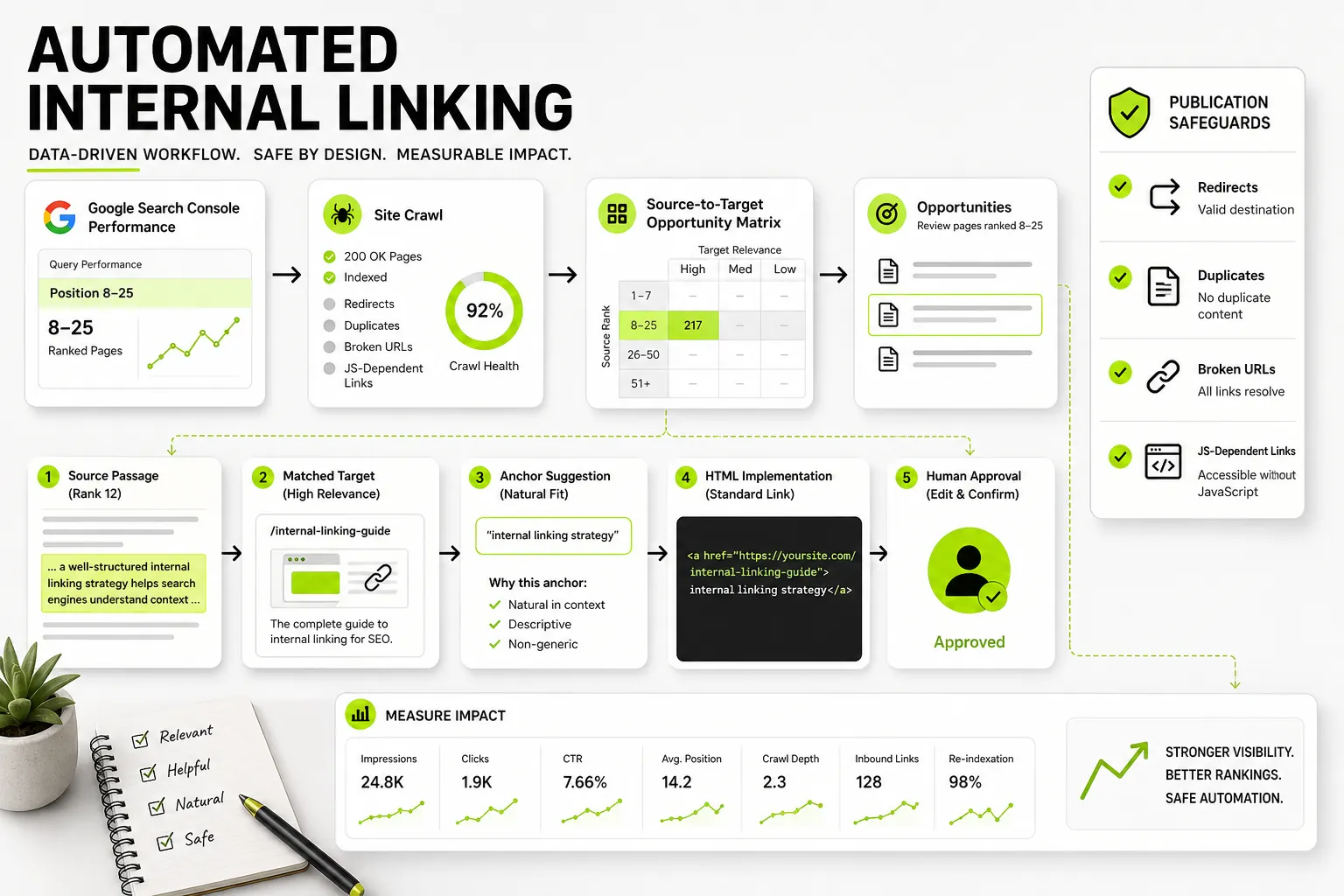
- Smart Internal Linking: Dango tracks internal page contexts to automate link planning, ensuring high-potential striking-distance pages get targeted anchor text from contextually relevant pages across your site.
If you are ready to turn raw Search Console query logs into prioritized content plans, automated briefs, and strategic internal links, visit Dango to explore plans starting at $99/month for Starter and $299/month for Professional. Get started today to automate your GSC execution workflow.
Frequently Asked Questions
How often should you perform a Google Search Console SEO audit?
Perform a light GSC performance and indexing check monthly to catch technical spikes, security issues, or sudden ranking drops early. Execute a full GSC audit—including query exports, cannibalization checks, striking-distance optimization, and internal link reviews—on a quarterly basis.
Why does Google Search Console show query impressions for pages that do not mention the keyword?
Google uses neural matching and semantic search to rank pages based on topic meaning rather than exact-match keyword density. If your page covers concepts closely related to a user’s search query, Google may rank your URL and log an impression, even if the exact phrase never appears in your copy.
What is the difference between Google Search Console data and site crawler data?
Google Search Console provides first-party historical data showing how Googlebot has crawled, indexed, and ranked your site in real search results. A site crawler (such as Screaming Frog or custom desktop crawlers) performs a real-time, end-to-end scan of your current web server architecture. Crawlers find undiscovered orphan pages, outgoing broken links, and missing HTML tags that GSC cannot detect on its own.
How far back does Google Search Console performance data go?
Google Search Console performance reports retain data for up to 16 continuous months. To store multi-year data for historical year-over-year reporting, export your performance metrics regularly to external storage destinations like Google BigQuery, Google Sheets, or an automated data warehouse.
Can Google Search Console fix SEO errors automatically?
No. Google Search Console acts strictly as a reporting and diagnostic platform. It alerts you to technical crawl errors, indexing blocks, and manual actions, but all fixes—such as updating code, adding 301 redirects, modifying content, or fixing server infrastructure—must be executed manually in your CMS or web host server environment.
Why are some indexed pages not showing up in Search Console performance reports?
A page can be fully indexed by Google but absent from the Performance report if it has received zero search impressions or clicks within the selected date range. Search Console performance tables only log rows for URLs and queries that generate at least one impression in Google Search results.
How do you export more than 1,000 rows of query data from Search Console?
To bypass the native 1,000-row export limitation in the Search Console web interface, connect your property to the free Search Analytics for Sheets Google Sheets add-on, utilize third-party API integration tools, or enable the native BigQuery Export option inside your GSC property settings.